Query Builder is a no-code method for querying your data on the SoundCommerce platform. This feature presents your data in a series of fields so that you can construct queries that return lists of customers, products, and so on, without any knowledge of SQL.
Watch this 3-minute video of Query Builder before you dive in.
Warning: Query Builder lets you access customer PII (personal identifying information). To use this feature, you'll need to request special permissions from your administrator.
In this article
Open Query Builder
- From the Retail Dashboards, select Query Builder in the left navigation panel
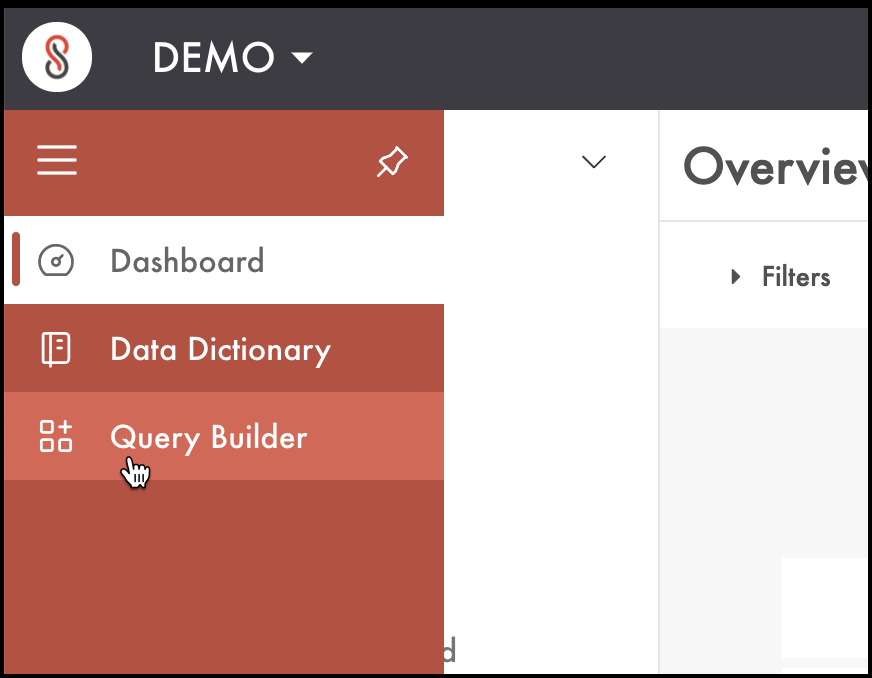
Run and save a query
When you build a query in Query Builder, you work from the top down, starting with the query type. Your selection limits subsequent fields, operators, and values to those specific to the those specific to that query type and category.
When you run the query, Query Builder processes each statement the same way, from the top down, and from left to right.
- From the Query Type menu, select a data type.
- Next, select the Category and Field menus below. Only attributes and fields from the data type you selected in step 1 will appear.
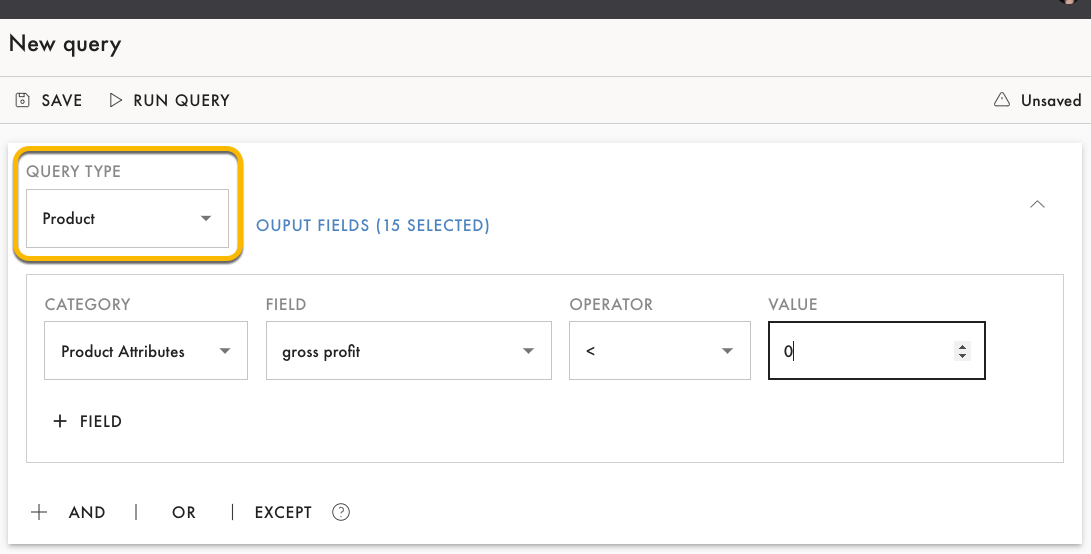
- Select Add statement from the bottom left, and from the Operator and Value menus, set parameter limits.
- When you're ready to run a query with the fields you've selected, select Output fields, and then select Run query.
Running a query can take time. Stay on the page while the query runs or else your query (and the results) will be deleted. When the Download button appears, the query is complete. - To save your query, enter a name in the Query name box, and select Save. Your saved query will appear on the left.
Queries are stored with your user instance. Only you can see and use your queries.
Export your results
The data in your results can be combined or used with other programs, spreadsheets, and analyses by saving the results to a simple, comma-separated values (CSV) text file.
- Save and run a query.
By saving the query, you can repeat your results. - When the query has completed, select the Download button to download a CSV file with your results
Comments
0 comments
Please sign in to leave a comment.