The Marketing dashboards show you how well your advertising and content strategies are performing in terms of acquiring new customers and engaging existing or lapsed customers. Marketing data is aggregated with orders and Google Analytics (GA) data to show you every ad a customer saw, and those that successfully triggered a conversion. To get marketing insights from Direct Access in BigQuery, see SQL Queries for Marketing data.
Requirements: SoundCommerce Campaign360 subscription
In this article
Determine CAC for each media channel
The cost of acquiring a new customer (CAC) is calculated from your order history and Google Analytics attributions data. When calculating CAC, we account for every penny you spent on advertising to acquire new customers, even if it didn't directly lead to conversions. This fully loaded, or burdened CAC, gives you a more realistic metric for forecasting future CAC than only ad spend from conversions.
In most cases, we can attribute ad spend to roughly 80% of orders. The remaining unattributed ad spend is distributed evenly across all orders placed through digital marketing channels to derive your CAC rate.
- From the SoundCommerce dashboards, in the left navigation pane, select Marketing and then select Attributed Customers.
By default, the graph shows your CAC-burdened rate across all media channels. - To view attributions by specific sources, channels, and devices:
- Click the Channel filter to specify the channel type. From the menus, select is and then deselect all except the channels you want to view.
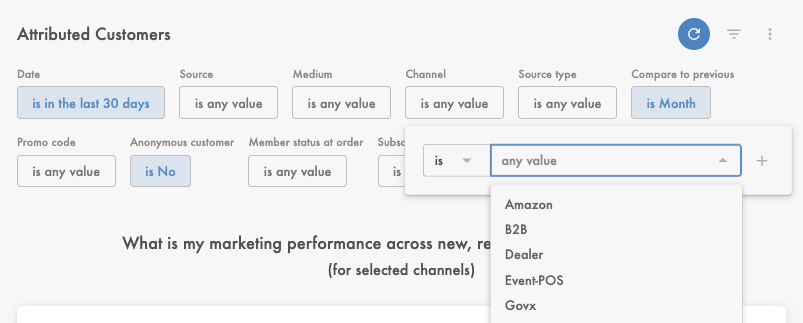
- Next, target the specific ad campaign by setting the Source and Medium filters to reflect the advertisers you want. The source is the site that claimed the customer attribution and the medium is how the customer got to that site, whether from an email, click ad, social media, and so on.
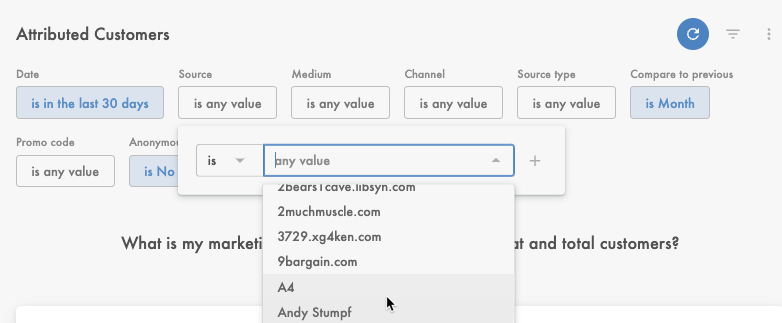
- Click the Channel filter to specify the channel type. From the menus, select is and then deselect all except the channels you want to view.
Determine CRC by source or media channel
Find your customer retention costs (CRC) for to ensure that your campaign and marketing efforts are cost effective.
- In the Marketing dashboards, select Attributed Customers.
The CRC tile gives you the total cost of retaining a customer. The bar graph directly below the tile shows your total ad spend and CRC, over time.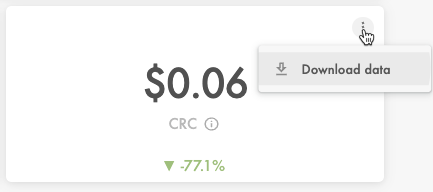
- On the tile, select the upper-right menu to download this data to an editable format (.txt, .csv, JSON, .markdown, and others).
- To view CRC for a specific campaign, expand the Filter, and do one of the following:
- To see CRC for a media platform, such as Instagram, set Channel is. Click in the box to pull up a menu of channels.
- To see CRC for specific sites, set Source is. Click in the box to pull up a menu of sites
Comments
0 comments
Please sign in to leave a comment.