If you're planning a retention program or promotion, you'll need some specifics about your customers. Query Builder lets you access most details around purchase behavior so you can create segments based on any number of metrics.
Query Builder extends the SoundCommerce Retail Application by letting you build custom, no-code queries to surface information that isn't readily available in the dashboards. For an introduction, see Get started with Query Builder.
Important: Query Builder exposes customer PII (personal identifiable information). For this reason, you'll need special permissions to use Query Builder. Contact your administrator for details.
In this article
- Segment customers by first purchase and channel
- Segment customers for a Facebook Lookalike Audience
- Get a list of high-value customers who received a late order
Segment customers by first purchase and channel
Use this query to create a cohort of first-time customers from a particular channel. In this example, we target a specific sales channel, versus a social or digital marketing channel.
This query returns two lists of customers:
- Customers who placed their first order within the specified time frame
- Customers who ordered through the specified sales channel during the specified time frame
If a customer placed a single order within the specified time period, then it's clear their first purchase used the sales channel in question. If the customer placed multiple orders within that time frame, you'll need to examine the data to see if it matches the criteria.
- From the Query Type menu, select Customer
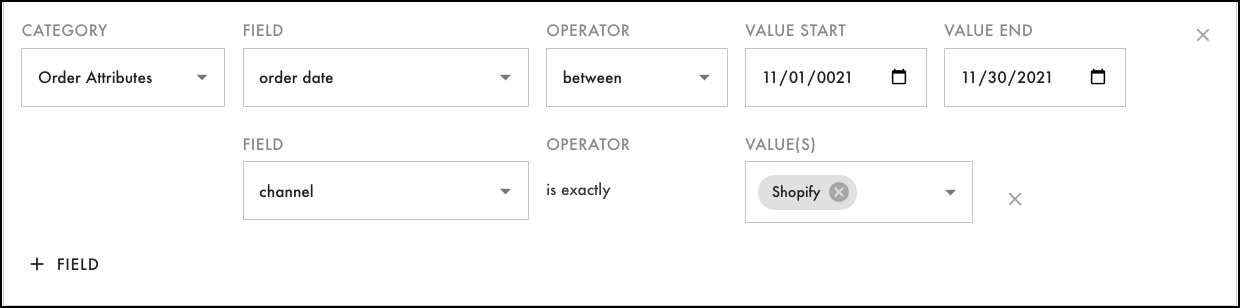
- Use the settings shown below to define a cohort of customers. Choose a date range that makes sense for your business and apply that same date range in each of the remaining steps.

- Select the AND operator to add a statement for the order date and sales channel. Specify the settings shown below.

- Select + Field to add a second field for the channel. For Value(s), choose from the available sales channels in your data.
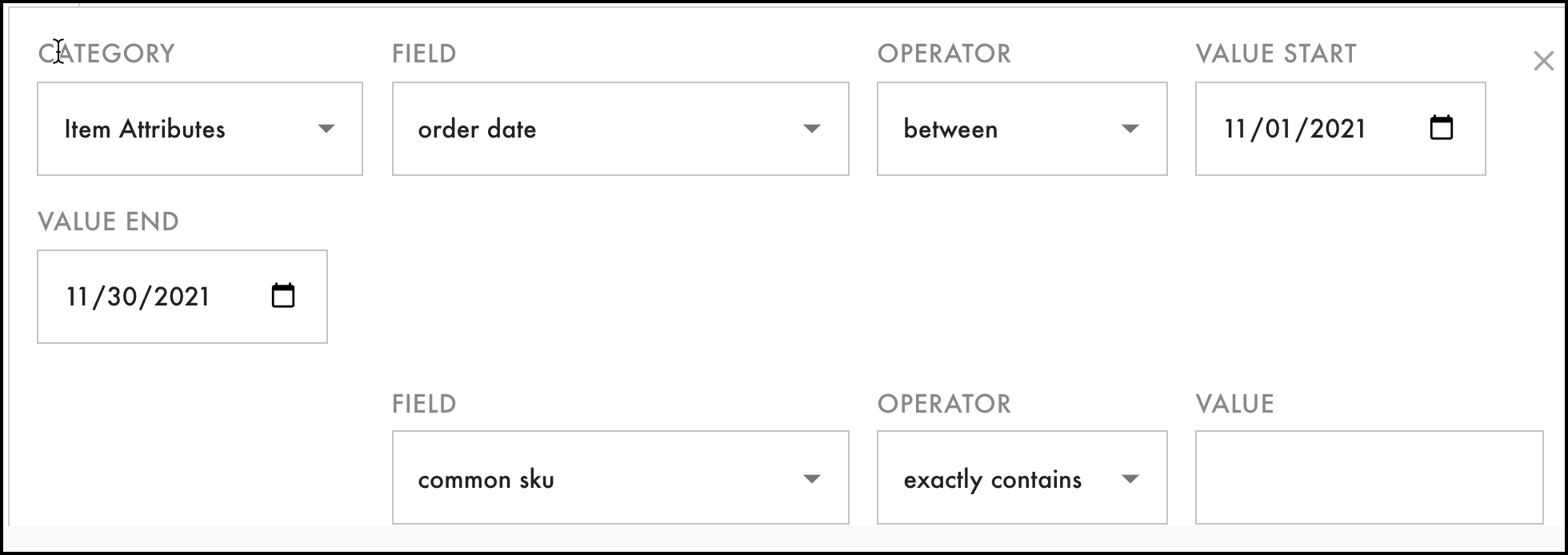
- Select ADD to create a third statement that targets Item Attributes:
- For the order date field, use the same date range as the previous statements
- For the common SKU field, use a value that's appropriate to your business
-
Select Output fields to specify the fields you want in the final results, and then select Run query.
-
(Optional) Save and name the query for later use.
Segment customers for a Facebook Lookalike Audience
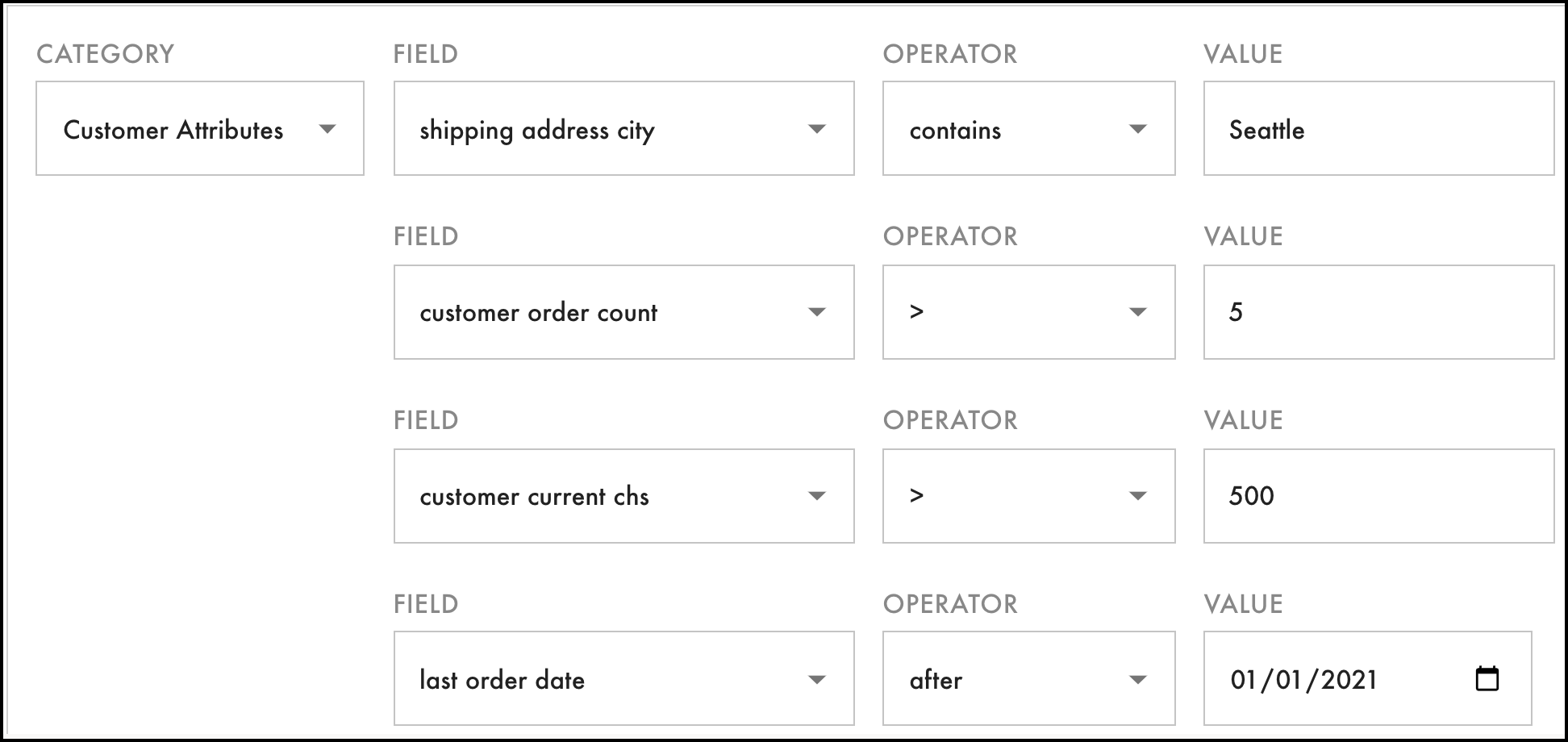
To model an effective Facebook Lookalike Audience, create a real-world segment from your high-value customers. This example defines high-value customers as those who spent a total of $500 or more with our business and reside in Seattle.
- From the Query Type menu, select Customer
- Create the following statements for the Customer Attributes category, using the + Field button to add each new row
- Select Output fields to select the fields you want in the final results, and then select Run query
- (Optional) Save and name the query for later use
Get a list of high-value customers who received a late order
This query searches for high-value customers whose most recent order was delivered unacceptably late. Because these customers had a less-than-optimal experience, they're targeted for retention programs that appeal to valued customers with promotional offerings or gifts.
This query pulls from a cross-section of customer, order, and fulfillment data sets to return a list of email addresses.
- From the Query Type menu, select Customer
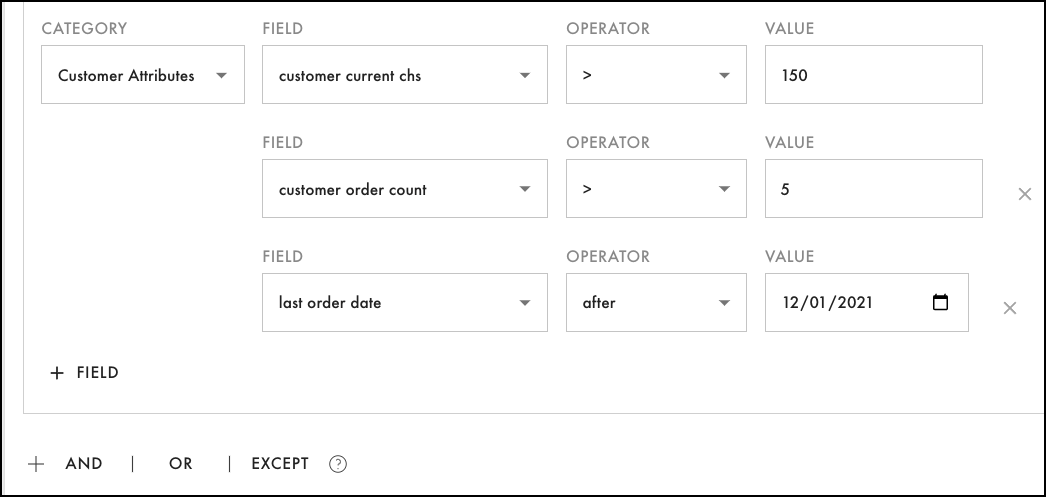
- Create the first statement by selecting the Customer Attributes category.
- Select the following three fields, operators, and values:
- Select the AND operator to add a second statement
- Select the Fulfillment Attributes category, and then select the fields, operators, and values as shown below
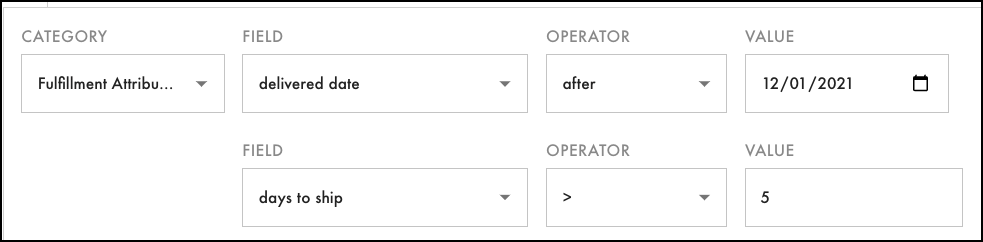
- Select Output fields to select the fields you want in the final results, and then run the query.
Related articles
Get started with Query Builder
Comments
0 comments
Please sign in to leave a comment.