Introduction
Enabling Reactor to connect to your Akeneo PIM will allow you to easily extract, transform, and load product information from Akeneo to Reactor, facilitating efficient management and integration of product catalogs across systems.
Configuration
Reactor Data will require the following to connect to your Akeneo instance and begin ingesting data from the source.
| Input | Type | Description | Category |
| host | string | Host | Instance Parameter |
| api_username | string | API Username | Instance Parameter |
| client_id | string | Client ID | Instance Parameter |
| secret | string | API Secret | Instance Parameter |
| username | string | User Account Username | Authorization Data |
| password | string | Password | Authorization Data |
Generating Credentials (Source)
Create an API User
You can create an API user in the PIM itself. Please give this user a unique name, and be sure to reference "Reactor" in the name to help identify the purpose of the user.
Once a user has been created, you will be asked for a password. Please generate a strong password using at least 16 characters mixed with upper and lower case letters, numbers, and special characters. You can use a password generator app to randomly generate a password.
Once the user and password have been created, please save the combination in a new 1Password entry. You should have already received an invite to the Reactor 1Password environment.
Create an API User Role
You can now create a dedicated user role, which will allow you to define targeted permissions.
- Click on System
- Click on Role
- Click on Create role
- Once in the role form, name your role
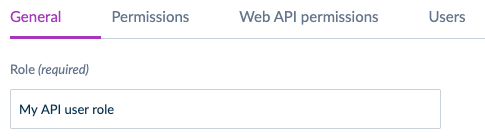
- Go to the Web API Permissions tab and activate the access to the Web API by clicking on "Overall Web API Access"
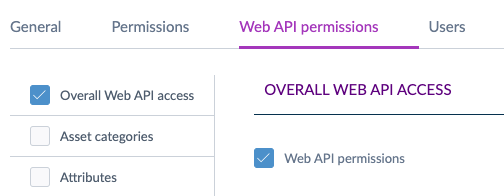
- Click on the Users tab and tick the box next to the user you created above to associate your API user to the new role
- Click on Save
* Please do not re-use a user role that is assigned to real users. We recommend creating a dedicated user role for your API user.
Get your Client ID and Secret
Depending on your PIM version (v1.7 or v2/v3), there are 2 methods to generate your client ID and secret. The following steps/links will walk you through how:
- v2/v3: Follow the below steps
- v.17: Launch Command Line
Create an API Connection
To create the client ID and secret:
- Click on System
- Click on API Connections
- Click on Create
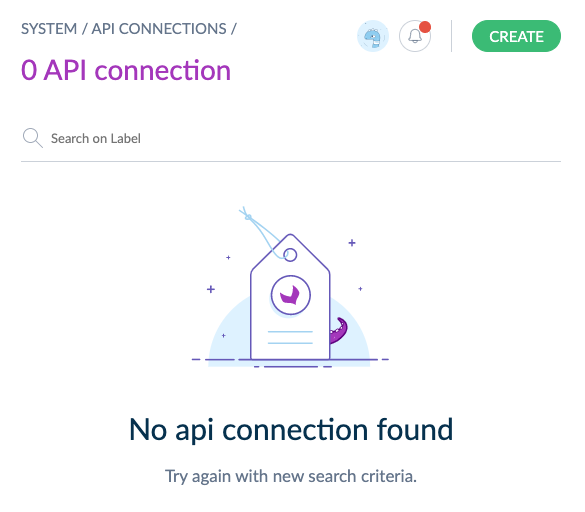
- The following pop-up should display. Enter a name for your API connection. We recommend including "Reactor" in this name to help identify the purpose of the connection at a later date.

- Click on Save. Your API connection should appear in the API connections table and should look like this:

- Save the client ID and secret to the same 1Password entry that you saved the API user and password (see here for details)
Comments
0 comments
Please sign in to leave a comment.